VR and AR
VR pieces
Ask for VR and a 3D piece opens on a headset: walk round it, point and play with controllers or hands.
Ask Perlin for VR and it builds a 3D piece you can step inside. Put on a headset, open the piece and press Enter VR: the world is all around you, at your size, and you play it with the controllers or your hands. Everywhere else, on a laptop or a phone, the same piece plays on the screen as it always would.
There's no app and nothing to install. A VR piece plays in the headset's own browser, from the studio, a share link or a page it's embedded on.
Asking for VR
Say VR in your idea. Any of these work: "VR", "for my Quest", "something I can step inside". Perlin builds it as a 3D piece and sets it up for a headset.
A good VR prompt says four things:
- The world, at your size. It's built in metres with the floor where yours is. Say whether it fits on a table, fills a room or runs to the horizon.
- What your hands do. Trigger, grip, the thumbsticks, the A and B buttons and a pinch are all there to use. Name the action and Perlin puts it on the right one.
- How you get about. Stand still and play, walk with the left stick, or ride something.
- What it does on a screen. Say how a mouse or a finger plays it, for everyone who opens it without a headset.
Already made a 3D piece? Open it and ask Perlin to "make this VR". It keeps the piece, sets it at your size and adds the controls.
What you need
| Device | What happens |
|---|---|
| Meta Quest, in its browser | Enter VR shows on VR pieces |
| Other headsets with a WebXR browser | Should work the same way |
| Laptop, desktop, phone or tablet | The piece plays on the screen, with mouse, touch and keys |
The Enter VR button only shows where it can work, so nobody on a laptop sees a button that does nothing.
Playing a piece on a headset
Open it on the headset
In the headset's browser, open the studio, the piece's share link, or a page it's embedded on. The examples on the VR and AR page play right there on the page too.
Press Enter VR
The button sits at the bottom of the piece. Point at it and pull the trigger, or pinch.
Look round and reach out
The piece is all around you. Walk, lean in and use your hands. When you leave VR, the piece carries on in the page with its camera back where it was.
If the button says VR didn't start for a moment, the headset turned the request down. Wait for it to read Enter VR again and press it once more.
Controls
Each piece decides what its controls do. These are the usual jobs, and what Perlin reaches for when you name an action.
| Control | What it usually does |
|---|---|
| Trigger | Point and pull: pick, fire, paint, press |
| Grip | Squeeze: grab, hold, wind, change colour |
| Thumbsticks | Walk with the left, turn with the right, where a piece lets you move |
| A, B, X, Y | Whatever the piece gives them: undo, clear, jump |
| Your hands | Put the controllers down: a pinch does what the trigger does |
Controllers can buzz, too: a piece can give a little pulse when you hit something.
What changes in the headset
A VR piece is a 3D piece first, and some things only make sense on a screen.
- Words go in the world. Scores, names and menus float on panels in the scene, where a headset can read them. Text and images laid over the piece on its timeline don't show in VR.
- The page stays on the page. The studio's controls panel and your mouse pointer don't reach you inside the headset. Anything you want to change in VR needs a control in the world.
- Glow comes from colour. A headset draws two eyes 72 to 90 times a second on a mobile chip, so heavy screen effects like bloom only show on a screen. Perlin makes the VR look stand on its own, with glowing colours and fog.
- Kind to stomachs. Turns go in steps, the horizon stays level and nothing shakes the view.
Pieces to try
The studio's Gallery has a VR & AR filter: press G to open it and pick the filter. Each piece's card is marked VR, AR or VR · AR. These go into VR:
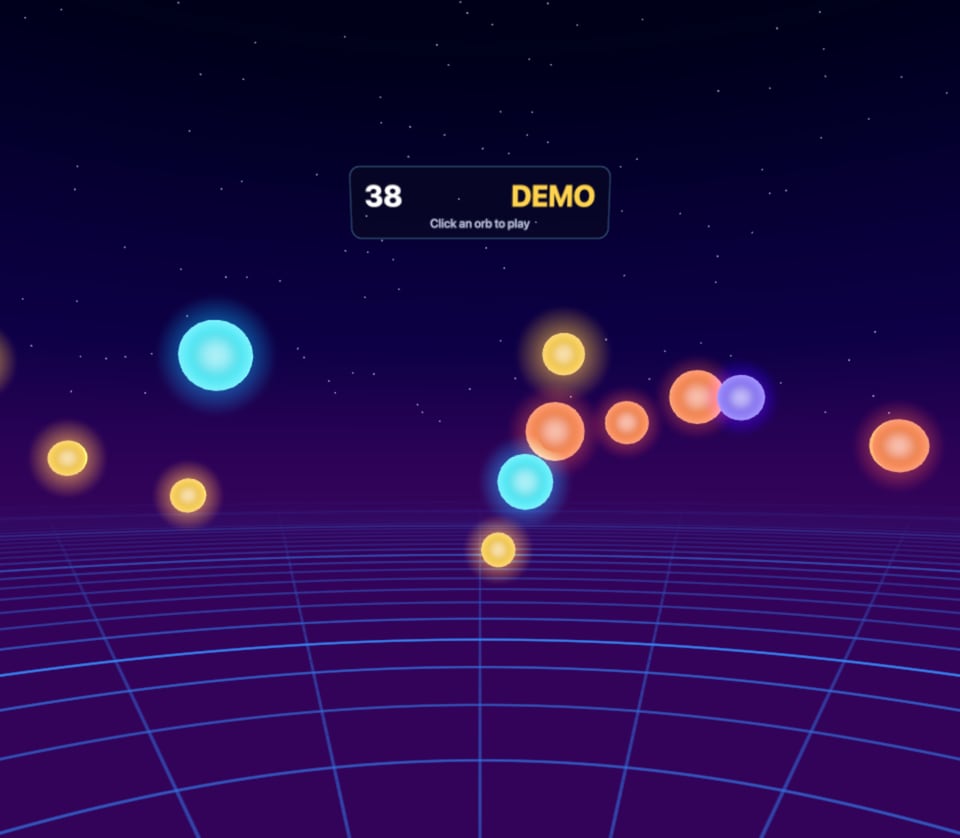 Orb RangeWebGL 3DGlowing orbs drift round you at night. Point, pop and keep a combo going before the minute is up.Open in the studio
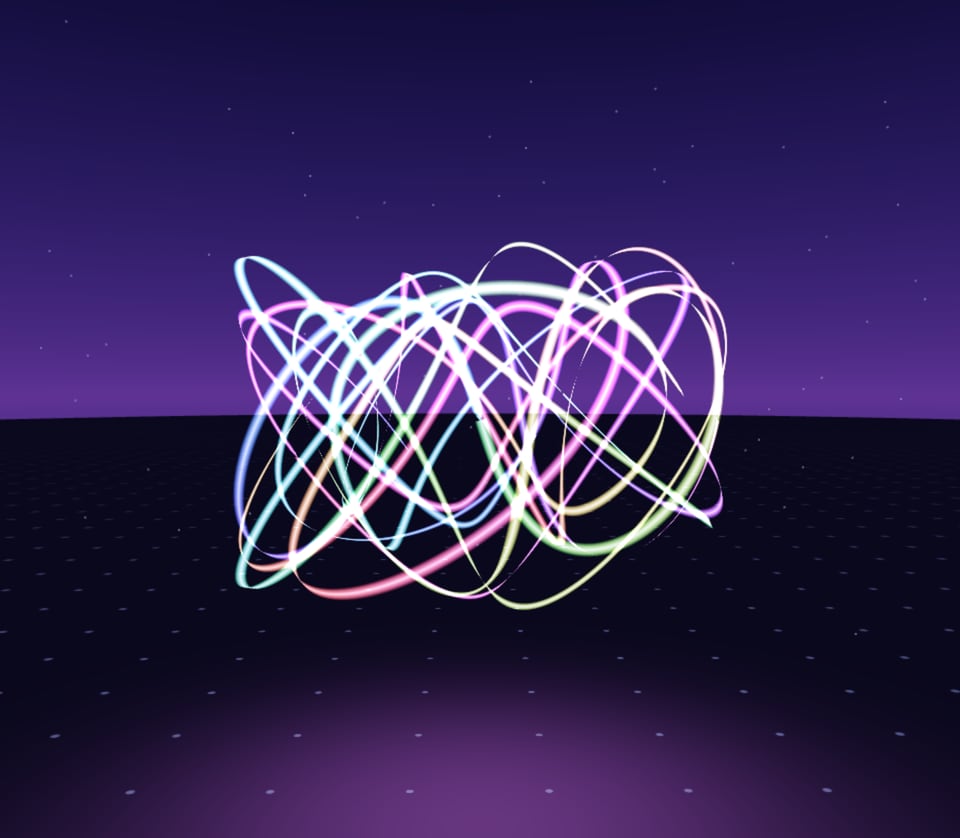 Light BrushWebGL 3DPaint ribbons of light in the air, then walk round them. Twist your wrist to turn the ribbon.Open in the studio
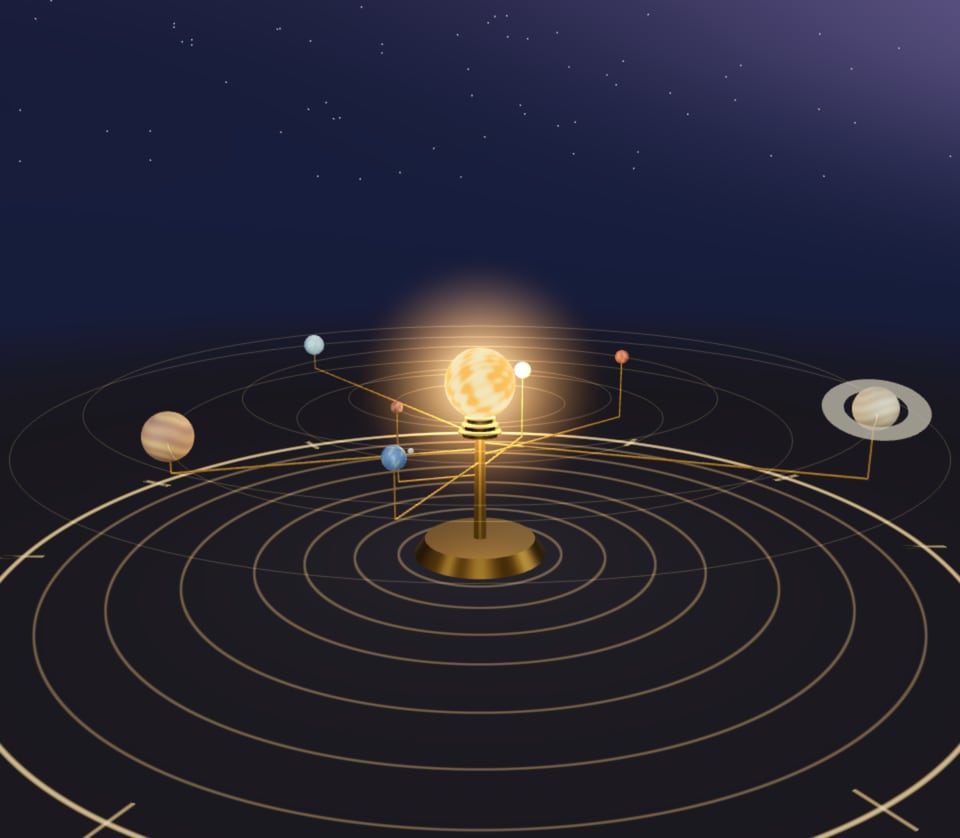 Night OrreryWebGL 3DA brass orrery the size of a room, turning seven worlds round a burning sun.Open in the studio
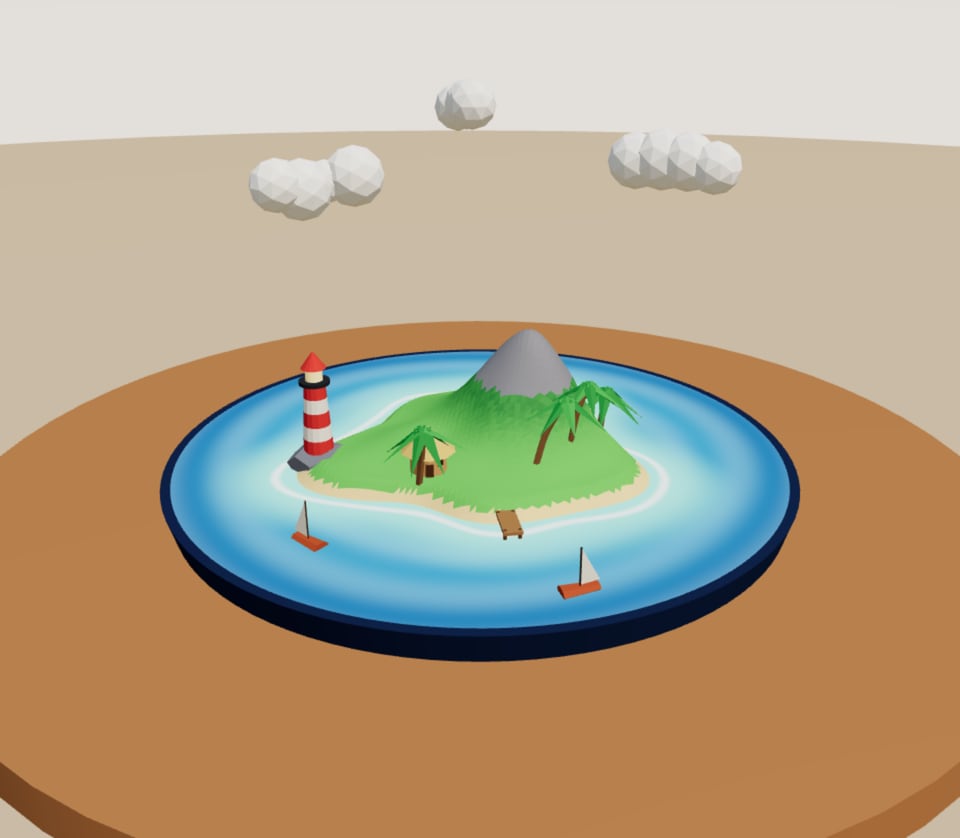 Pocket IsleWebGL 3DA little island for your table: a lighthouse, palms and two boats sailing round.Open in the studio
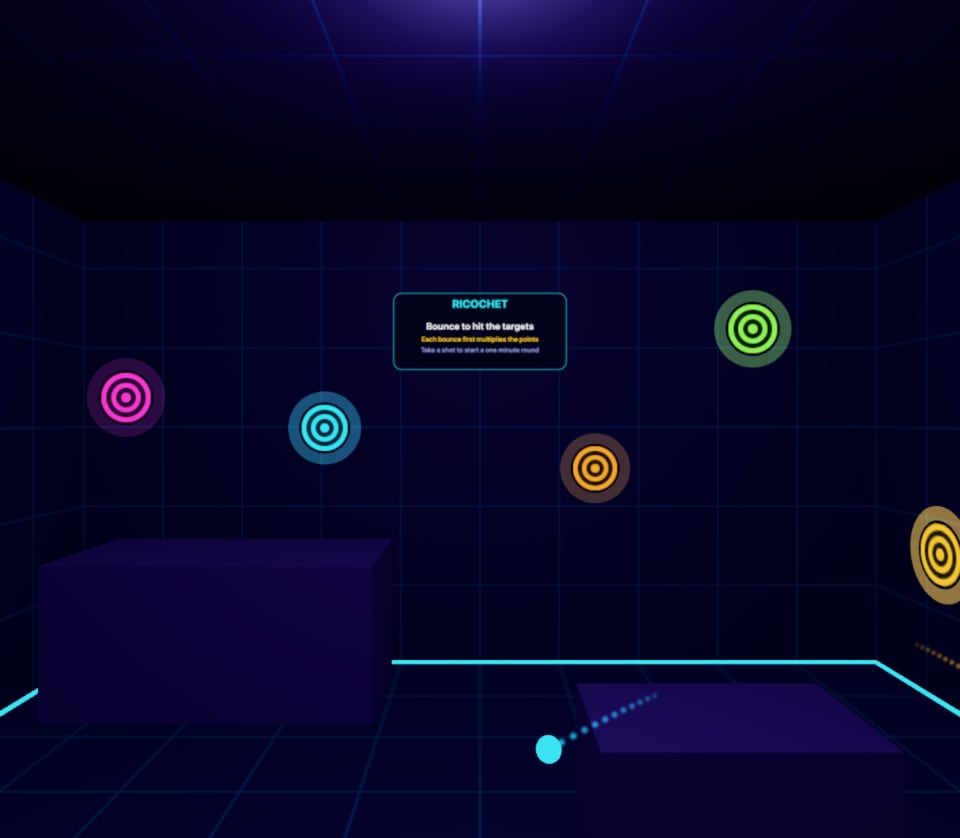 RicochetWebGL 3DTargets on your walls, balls of light that bounce off the room. Every bounce multiplies the hit.Open in the studio
Open one, then remix it: ask Perlin to change the world, the controls or the rules.
Testing tips
- Start on the screen. Build and tune the piece on a laptop first. It plays there, so you can get the look and the screen controls right before you put the headset on.
- Then open it on the headset. Sign in to the studio in the headset's browser and your pieces are there. Or share the piece and open its link on the headset.
- Check it at your size. Things to reach should sit between chest and eye height, within a step or two. If something is too big, too close or under the floor, say so: "make the table half the size", "move the targets back a metre".
- If it stutters, ask for lighter. "Fewer particles", "simpler materials" or "fewer lights" all help a headset keep up.
- If the controllers look black, ask Perlin to add a soft light to the scene. They're lit like everything else in it.
Related
Still stuck, or something here out of date? Tell us