VR and AR
AR pieces
Ask for AR and a piece comes into your room, onto your walls, floor and table.
Ask Perlin for AR and the piece comes into your room instead of taking you somewhere else. On a Meta Quest your room shows through it; on an Android phone it's drawn over the camera. A window can open in your wall, an island can sit on your table, and balls of light can bounce off your floor and furniture. On a laptop, an iPhone or anywhere else without AR, the same piece plays on the screen.
Asking for AR
Say AR, or where it goes. Any of these work: "AR", "mixed reality", "in my room", "on my table", "on my wall". Perlin builds a 3D piece sized for a room and sets it up to find your surfaces.
Tell it where the piece lives and what you do with it: "on my table", "set into my wall", "targets on my walls that I hit with the trigger". Say what it does on a screen too, for everyone who opens it without AR.
To make a piece that works both ways, ask for VR and AR. It then offers Enter VR and Enter AR, and works as a world to step into and as something in your room.
Where AR works
| Device | What happens |
|---|---|
| Meta Quest, in its browser | Enter AR, with your room showing through the piece |
| Android phone, in Chrome | Enter AR, with the piece drawn over the camera |
| iPhone and iPad | No AR yet; the piece plays on the screen |
| Laptop or desktop | The piece plays on the screen |
The Enter AR button only shows where AR can work.
Playing a piece in your room on a Quest
Set up your room once
A Quest knows your walls and furniture from its Space Setup, in the headset's settings. Without it AR still works, with the piece placed in front of you rather than on things.
Open the piece and press Enter AR
In the headset's browser, open the studio, a share link or a page the piece is embedded on, and press Enter AR at the bottom of the piece.
Let it use your room
The first time, the Quest asks whether the page can use your room. Say yes so the piece can find your walls and tables.
Place it
Most pieces place themselves on a sensible surface. To move one, point at another wall or table and pull the trigger.
Playing a piece on an Android phone
Open it in Chrome and press Enter AR
Open the share link, the studio or the page the piece is on, in Chrome, and press Enter AR at the bottom of the piece.
Find the floor, then tap
Move the phone slowly so it finds the floor and the surfaces round you. A tap on the screen does what a trigger does on a headset, so tap where you want the piece.
What a piece can do in your room
- Know your room. Floor, walls, ceiling, tables and the sofa, each one named. A piece can set a window into your wall, sit on your table or put targets where you can reach them. A phone mostly finds flat surfaces without names.
- Point and place. Point at a real surface and pull the trigger, or tap it on a phone, and the piece goes there, turned to face the way the wall or table does.
- Bounce off the real thing. Balls roll across your floor and ricochet off your walls.
- Hide behind your furniture. On a Quest 3, real things can hide what's behind them: your hand passes in front of a planet, a fish swims behind the chair. Pieces that sit on or in a wall or table usually leave this off, since it would cut into them.
- Stay where you put it. A placed piece is pinned to the room, so it stays put while you walk round it and look away.
Your room is the backdrop
In AR, the piece's sky, background colour and fog are left out, so your room shows instead. Anything that stands in for a room on a screen, such as a floor, walls or a table top, is hidden too. That way the piece looks complete on a screen and in VR, and sits in your real room in AR.
The same goes for the light: bright, saturated and glowing things read best over a lit room, and dark, murky scenes disappear into it.
Pieces to try
These go into your room. In the studio, press G for the Gallery and pick the VR & AR filter to find them, marked AR or VR · AR.
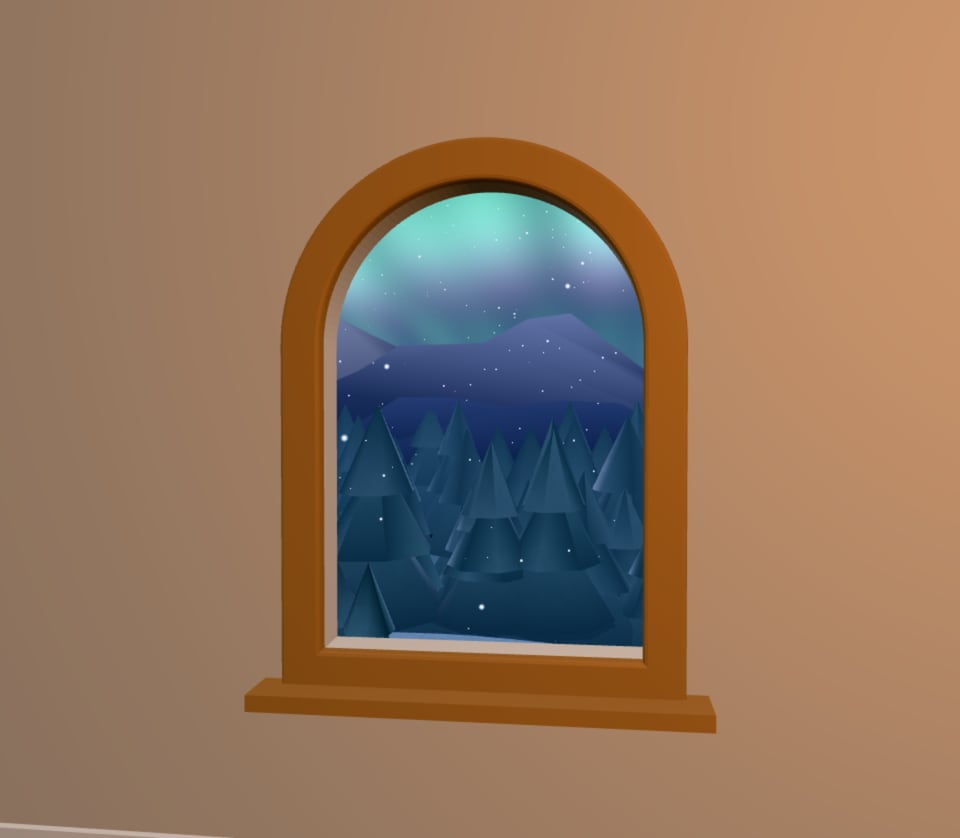 Wall WindowWebGL 3DAn arched window opens in your own wall onto a snowy valley under the northern lights.Open in the studio
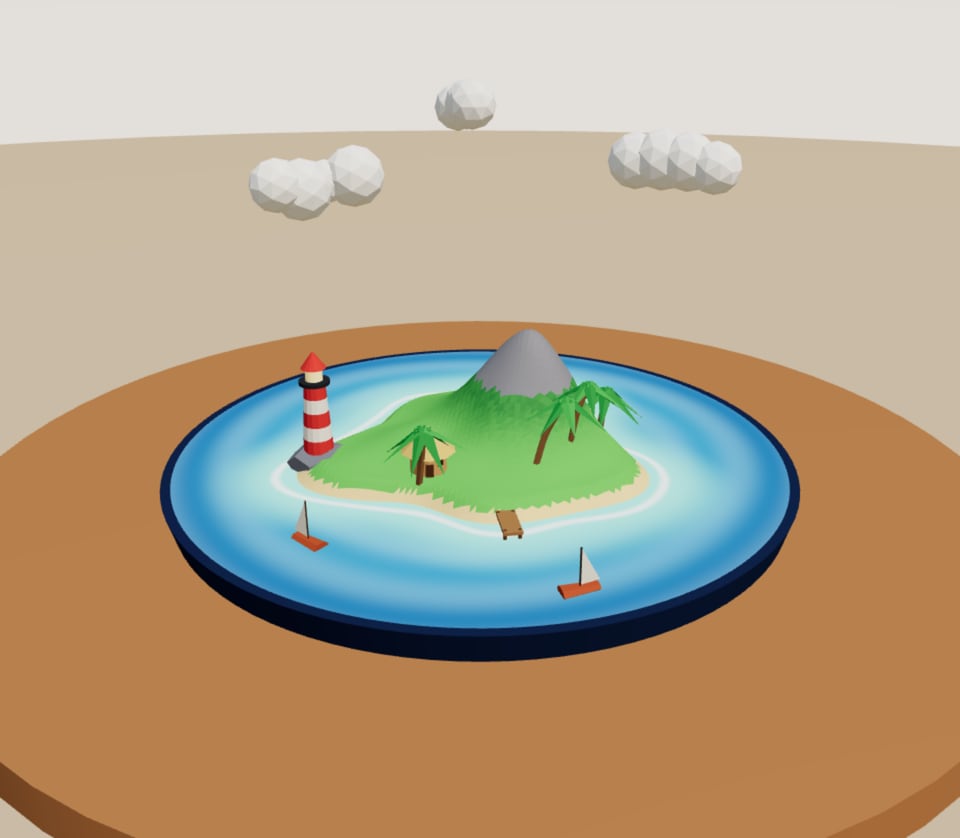 Pocket IsleWebGL 3DA little island for your table: a lighthouse, palms and two boats sailing round.Open in the studio
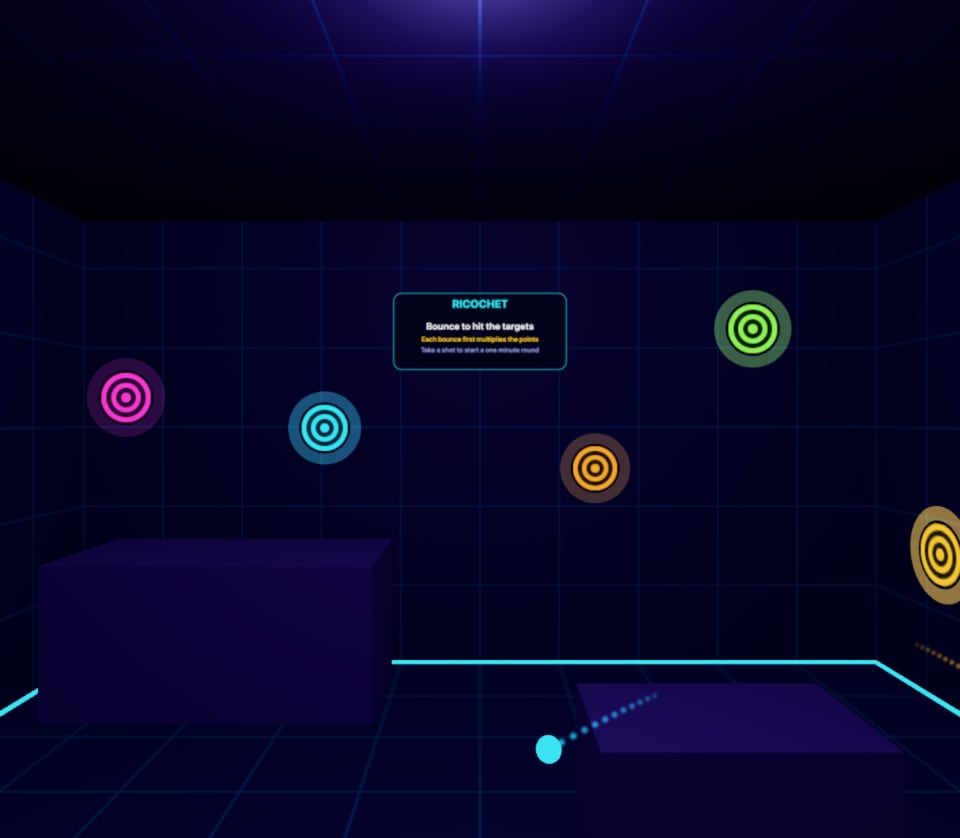 RicochetWebGL 3DTargets on your walls, balls of light that bounce off the room. Every bounce multiplies the hit.Open in the studio
Testing tips
- Start on the screen. Get the piece looking right on a laptop first; it plays there as a normal 3D piece.
- Give it a moment. Your surfaces arrive a moment after you go in, and change as you look round. A good AR piece shows something straight away and moves onto a surface when one turns up. If yours waits on an empty room, ask Perlin to "start in front of me and move onto the table when it finds one".
- Size it for a room. Things to reach should be within a couple of metres, and a tabletop piece about the size of a tray. Say "smaller" or "at table height" if it's too big.
- Try a phone as well as a headset. A phone's surfaces are often all unnamed and its floor may start where the phone is, so a piece that looks for "the table" by name may need another way to find one.
- Light it for a lit room. If it looks washed out over your room, ask for brighter, more saturated colours and a little glow.
Related
Still stuck, or something here out of date? Tell us